Product Guides
Instructions for the EasyTradePad trading panel
A full walkthrough of the EasyTradePad manual trading panel: input parameters, opening orders, averaging, pyramiding, breakeven, trailing stop and risk-based order placement.
Basic settings in input parameters
Parameter / Settings
Magic_Start — starting magic number order.
Req_before_open_orders = true/false — if true, an additional window will appear to confirm the opening of orders.
Panel_Size — panel size.
Money management
Source data for calculating % function — percentage calculation option: from balance / equity / free margin.
Extra Settings
Order_information = true/false — if true, when there are open orders, information about the current state of the position is displayed at the bottom.
Order_information_color — color for displaying information about the current state of the position.
Print_Error = true/false — printing errors in the Experts column.
Opening orders
Orders are opened using the buttons:
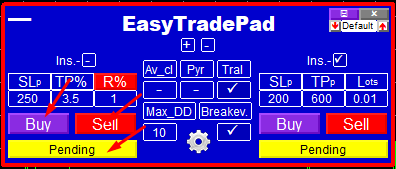
- Buy
- Sell
- Pending — opening pending orders for both buying and selling

When the Ins. button is enabled, orders are opened instantly, taking into account the choice of the direction of the order.

When the Ins. button is disabled, parameters of the opened order can be adjusted on the chart.
Ability to track orders and check the strategy in the tester
The panel has an order tracking system. The buttons for enabling the averaging / breakeven / pyramiding / trailing stop functions are located in the middle of the panel.
Click on the dash zone; when the checkmarks appear, we enable / disable these functions.
The Max_DD setting is designed to control the total loss for a series of orders with averaging and pyramiding.
Under most of the functions there are built-in hints that you can read if necessary.
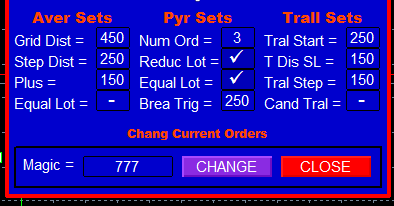
The control of order tracking parameters settings is located at the bottom of the panel and is called by clicking the gear icon.
The settings are signed and divided into three blocks.
Average Sets column
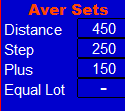
- Distance — select the distance between orders.
- Step Dist — distance to the first averaging order.
- Plus — the amount of profit in points for averaging orders.
- Equol Lot — can be activated if you want to open all averaging orders with one lot; the lot size will be equal to the first order in the series.
Pyramid Sets column
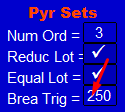
This column contains parameters for controlling position pyramiding.
- Num. Order — the number of orders involved in the construction of the pyramid.
- Reduce Lot — using this function, the lot of each subsequent order in the pyramid will decrease. The % reduction is controlled in the global settings.
This setting is needed to build the correct pyramid. An example is shown in this picture.
- Equol Lot — opens all pyramiding orders with the volume equal to the first order.
- Break Trig — the distance after which the transaction will be transferred to breakeven.
Third column Tral Set
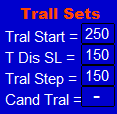
The first three settings Start / Distance / Step are the basic trailing stop settings.
The fourth setting, Cand Tral, is a trawl on the shadows of the candles. This setting also has an activation parameter and a choice of TF candles.
The Trail function works for orders located in the profitable zone; the function does not apply to series for which averaging or pyramiding has occurred.
The Candel_Tral_Activate setting is in the global settings. In practice, this is the number of points that the price must overcome, after which trailing along the shadows of the candles will turn on.
Candle trawl TF is selected in the Cand_Tral_TF setting.
Change Current Orders function
Each order has its own unique magic number. When opening an order, in the Magic column, we see with which magic we open the order.
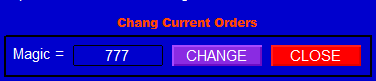
In the future, we will be able to enable / disable pyramiding / averaging / trailing / breakeven, as well as change the settings of these functions — namely the averaging step, trailing size, breakeven trigger — for open orders.
Sequencing
- First — change the parameter settings on the panel.
- Second — press the Change button, having previously indicated to Magic the number of the order whose parameters we want to change.
With the Close button, we can close any order or series we have chosen by also indicating to Magic the number of the order that we want to close.
When opening orders, in the lower left corner we will see the financial status of positions, which is also convenient for trading control.
Order tracking functions
This chapter describes the meaning of the buttons:
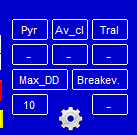
- Av_cl (Average Close — closing through averaging)
- Pyr (Pyramiding)
- Breakev (Breakeven)
- Tral (Trailing Stop)
- Max_DD (Maximum Drawdown)
How to partially close a trade with EasyTradePad:
Top 5 convenient panel features
- Calculation of risk in percentage and in account currency.
- Placement of market and pending orders with simultaneous risk adjustment directly on the chart using the mouse.
- Ability to track orders, namely:
- pyramiding
- averaging
- withdrawal to breakeven
- trailing stop
- The ability to conveniently save custom settings and quickly switch between them.
- The work of the panel in the tester, to test your own strategy, which saves a lot of time.
By the way, many of these panels do not provide such an opportunity as backtesting.
This panel has a free version for online testing.
I suggest that you see for yourself the convenience and ease of this panel; you can rent the panel for a month until the moment of purchase.
Averaging
By turning on the averaging key  , the opened position will be closed by averaging the position.
Why do most successful traders use averaging in the foreign exchange market?
The essence lies in simple logic. The fact is that the FOREX market is dominated by corridors, since the central banks of countries keep their national currencies in a certain price flat, which is beneficial for exports and imports.
If the currency is too expensive, then exports will also be expensive on the international market; and if the national currency is very cheap, then imported goods for the country's economy can be very expensive.
Thus, the national banks of all countries need to keep a constant balance between exports and imports. The main levers of influence on the value of the currency are the regulation of the discount rate parameters, sharp and straightforward statements regarding their monetary policy, and the purchase or sale of the national currency. That is why the corridor character prevails in the currency markets.
However, not all currency pairs can be corridor pairs, and you should choose exactly those whose corrective movements are more than 50–60% of the impulse. Otherwise, you can "catch knives" instead of riding the wave of the trend.
The most interesting pairs to average
These are EURUSD, EURJPY, USDCAD, AUDUSD, USDJPY, CHFJPY, AUDCHF.
This strategy can also be applied to stocks, but mainly in buy positions, selecting stocks with further growth potential.
Visualization of the averaging technique on the chart
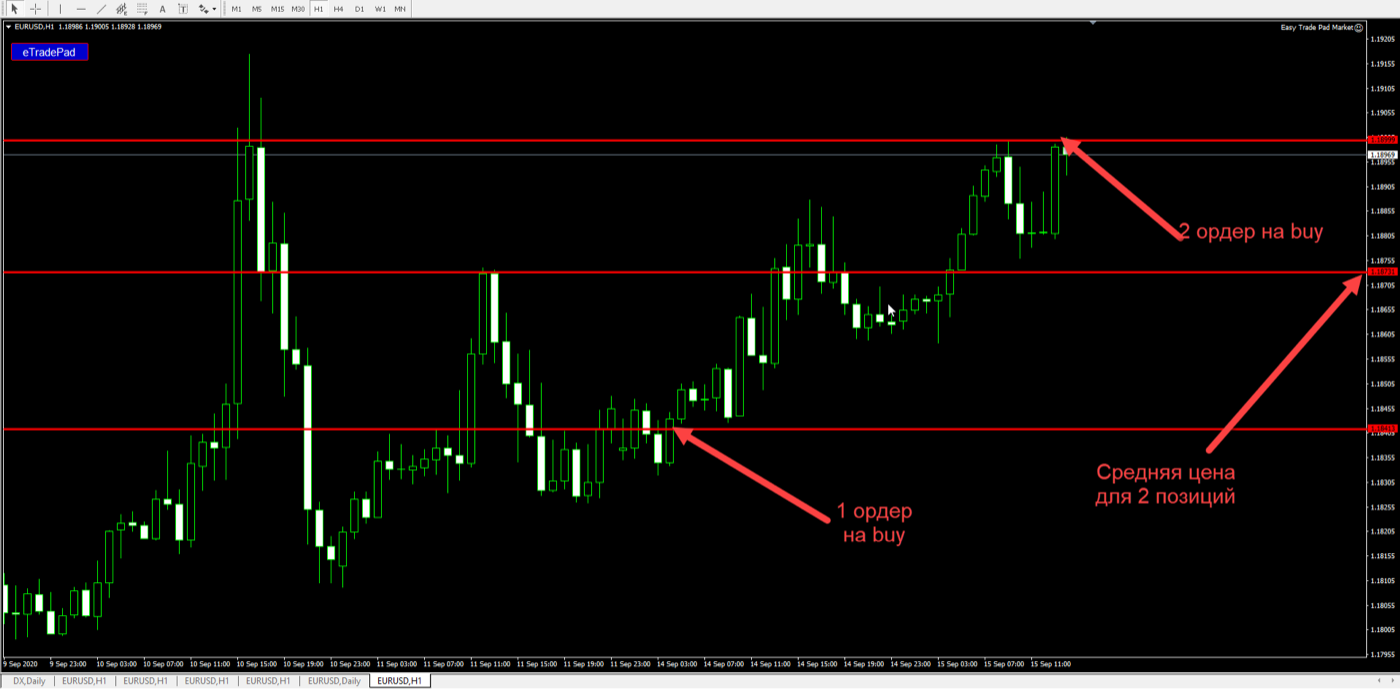
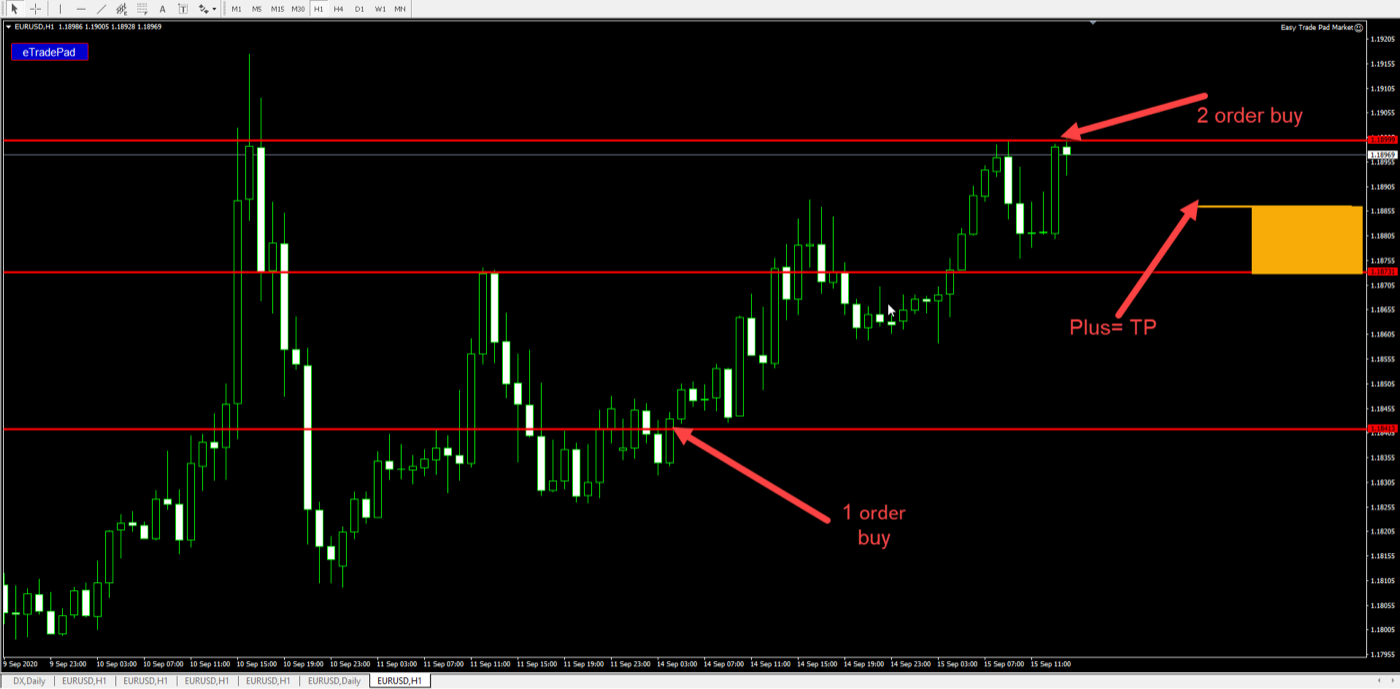
When averaging, we have the Plus parameter in the settings, which is added to the average price and becomes our Take Profit.
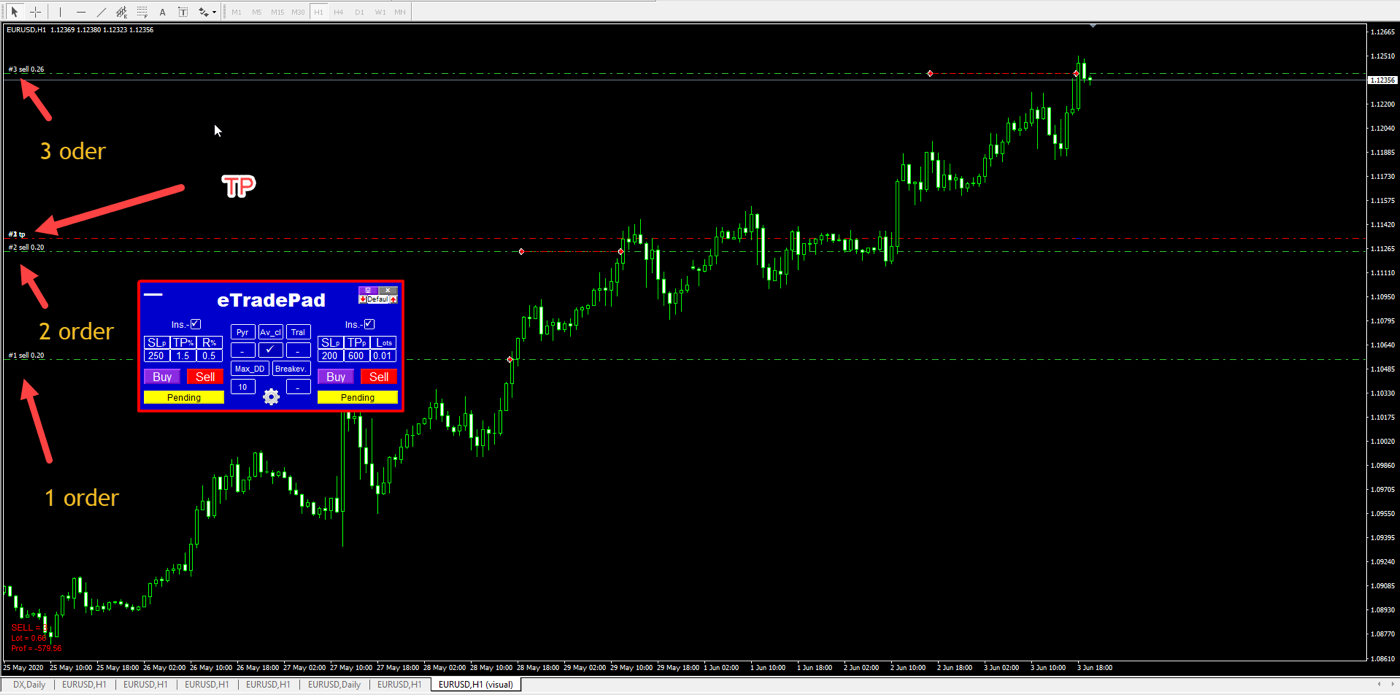
Order averaging parameters
Distance — distance in points between averaging orders.
Step — distance in points from the opening price to the first averaging order.
Plus — profit in points for averaging orders.
Equal Lot — use the same lot for all averaging orders.
Also in the properties of the adviser (call with the F7 key) you can adjust the following settings:
Average_Coefficient
Averaging factor. For example, if the averaging coefficient = 1.3, then the risk of each subsequent averaging order will increase by this value.
Hand selection price of new averaging level = true/false
Function allows you to manually select the level of placement of averaging orders. Even if you do not select the level where to place the order, the panel will calculate and place the order on its own based on the Step Distance and Distance settings.
Distance for notice new level averaging
The distance for which you will receive a notification and the ability to change the next level of averaging where an additional order will be opened.
Close_order_after_M_DD = true/false
If true, then when the maximum drawdown is reached, the specified percentage % in  loss will be covered.
The maximum drawdown parameter is set in this cell in % of the deposit, and will be shown on the chart using the red line Max_DD_line.

If the price goes beyond this line, the opening of averaging orders will stop.
This is done so that you can understand what you are risking and, at the right time, either close positions with a loss or increase the drawdown for a given series of orders and continue to average positions.
Pause in hours after exceeding the drawdown
A pause in hours after the max-drawdown event.
Show_Current_Max_DD_line
Show the price line on the chart where the specified maximum loss will be located.
Maximum number of allowable averaging orders = true/false
If true, then the averaging grid will be controlled by Max_Orders_in_Siries.
Maximum number of averaging orders
The maximum number of price averaging knees.
Distance Notice — Alert / Notifications for averaging
Averaging_level_Notice_Push / Email / Alert
Push / email / alert notifications when it becomes possible to select the averaging level.
Article: how to average a position correctly
Pyramiding
Pyr (Pyramiding) 
Position pyramiding consists in adding a trend position.
An example of how to build pyramiding with a decrease in each subsequent order:
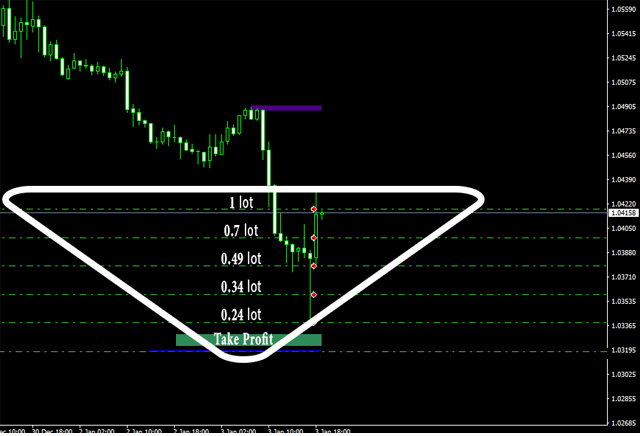
Reduce_Lot
The logic of decreasing each subsequent order in the pyramid.
If we have Reduce_Lot = true, each subsequent lot is opened smaller by Reduce_Lot_Coef (this setting is located inside the Inputs parameters).
For example, if Reduce_Lot_Coef = 30%, then each subsequent lot after the first one is opened 30% smaller than the volume of the previous one, up to the minimum of 0.01 lot, and then the opening occurs with the minimum volume.
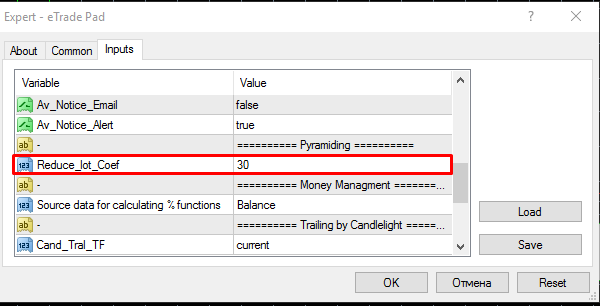
Num_Order
The number of orders from which the pyramid is built is selected in the Num_Order setting.
Num_Order — the order of opening orders is set by dividing the distance to the take profit for the first open order; the opening of orders occurs as the price moves towards the transaction.
For example, if the take profit of the 1st order = 30 points and Num_Order = 2, then the second order will open after the price passes 15 points (that is, Num_Order will always take into account the first initial order as already participating in the pyramid).
For example, if Num_Order = 3 and TP = 60 points, then the second order will open after the price passes 20 points, and the 3rd order after 40 points — that is, it will always open one position fewer, as it were.
Equal_lot
If this function is enabled, then all orders will be opened with the initially opened lot of the very first order.
Breakeven
Breakev (Breakeven)

The breakeven function allows you to move the SL above the opening price of a position after the price overcomes the distance specified in the Breakeven Triger.
The breakeven feature works very well with pyramiding, as you will be able to carry over the next profitable order that covered the Breakeven Triger distance.
Breakeven Triger
The minimum distance that the price must overcome in the positive zone before transferring the transaction to breakeven.
Trailing Stop

Tral (Trailing Stop)
The function works in two versions:
- trawl by points
- trailing on the shadows of candles (that is, it transfers the SL to the high / low of the previous candle)
To enable trailing stop by points, just click the Tral button in the settings, making sure that there is no checkmark on Candel_Tral.
Tral Start
Distance in the positive zone after which the trailing stop is activated.
T Dis SL (Tral distance to SL)
Distance in points from the current price to the stop-loss level.
Tral Step
Step in points for trailing.
Cand Tral
Trailing by candlestick shadows, setting per max./min. of the previous candle; the transfer of SL occurs after the closing of the current candle. The TF of the account is selected in the settings in the Cand_Tral_TF parameter.
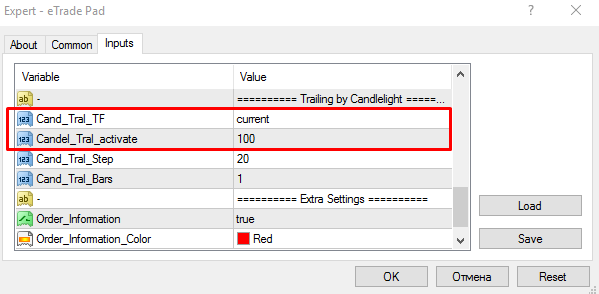
Settings in input parameters
Cand_Tral_TF
Choice of TF for trailing by candles.
Candel_Tral_activate
The distance that the price must pass in the profit zone, after which the trailing stop is activated by candles.
Candel_Tral_Step
The distance from the shadows of the candle to the trailing stop.
Cand_Tral_Bars
The number of candles from which it will search for the largest high/low prices. If set to 1, then the high/low of the last closed candle of the selected time frame is taken.
Calculating risk and placing orders
Any opened order can be adjusted depending on:
- lot
- risk as a percentage of the deposit
- deposit currency
- points
On the left side of the panel we see the values:
- R % — risk as a percentage per trade from the deposit
- TP % — take profit as a percentage of the deposit
- SLp — estimated stop loss in points
All percentage calculations can be adjusted in the global settings in the Money Management section; the calculation can be made by:
- balance
- equity
- free margin
On the right side of the panel, we can open a deal by setting the starting lot, stop loss and take profit values in points.
Let's move on to placing orders
We will consider placing orders using several examples.
Example 1 — market order, SL 250, TP 750, lot 0.01.
Before placing an order, I will mention the Ins. button: turning this button on / off, we can open an order immediately or visually correct it with the mouse on the chart and then send a request to open.
Example 2 — pending buy order with Risk 1%, TP = 3.5%, SL = 200 pips.
To do this, we press the Panding button and select the order placement level.
At the same time, please note that we can fully continue to adjust Risk, TP size and SL directly on the chart.
Similarly, using the Ins. button, pending orders can be opened either immediately or with preliminary adjustment of the order parameters on the chart.
Saving settings to set files
Each trader eventually comes to a risk comfortable for them, along with a size of SL and TP, and opens most transactions with the same parameters.
I noticed this on my own, and so I assume that saving the settings will be useful for other traders as well.
The function of saving settings is located in the upper right corner; the control is carried out with just two keys and the input field for the set file name.
Consider 2 examples of sets.
Example 1 — Risk 0.3%, TP 1.2%, SL 200 points.
Enter the name 0.3 for our set file and click save.
Example 2 — suppose for riskier trades we want to open an order with the settings Risk 1%, TP 3%, SL 150 pips.
Set the values in the desired columns and enter the name 1, then click save.
Now in our panel we can switch between the saved settings using the up/down buttons.
And also, for example, if we open another currency pair, then our settings will also be present on it, which I am sure will be very convenient.
Full list of input parameters
Parameter / Settings
Magic_Start — initial order of magic numbers.
Req_before_open_orders = true/false — if true, an additional window will appear to confirm the opening of orders.
Panel_Size — panel size.
Averaging
Average_Coefficient — averaging factor.
Hand selection price of new averaging level = true/false — the function allows you to manually select the level of placement of averaging orders. Even if you do not select the level where to place the order, the robot will calculate and place the order on its own based on the Step Distance and Distance settings.
Distance for notice new level averaging — the distance for which you will receive a notification and the ability to change the next level of averaging where an additional order will be opened.
Close_order_after_M_DD = true/false — if true, then when the maximum drawdown of the specified % is reached, the loss will be closed.
Pause in hours after exceeding the drawdown — pause in hours after the max-drawdown event.
Show_Current_Max_DD_line — show the price line on the chart where the specified maximum loss will be located.
Maximum number of allowable averaging orders = true/false — if true, then the averaging grid will be controlled by Max_Orders_in_Siries.
Maximum number of averaging orders — the maximum number of price averaging knees.
Distance Notice — Alert / Notifications for averaging
Averaging_level_Notice_Push / Email / Alert — push / email / alert notifications when it becomes possible to select the averaging level.
Pyramiding
Reduce_lot_Coef — percentage reduction coefficient for each subsequent lot when pyramiding a position.
Money management
Source data for calculating % function — percentage calculation option: from balance / equity / free margin.
Trailing by Candlelight
Cand_Tral_TF — choice of TF for candle trailing.
Candel_Tral_activate — the distance that the price must pass in the profit zone, after which the trailing stop is activated by candles.
Candel_Tral_Step — the distance from the shadows of the candle to the trailing stop.
Cand_Tral_Bars — the number of candles from which it will search for the largest high/low prices. If set to 1, then the high/low of the last closed candle of the selected time frame is taken.
Extra Settings
Order_information = true/false — if true, when there are open orders, information about the current state of the position is displayed at the bottom.
Order_information_color — color for displaying information about the current state of the position.
Print_Error = true/false — printing errors in the Experts column.
Buy or rent the EasyTradePad panel
EasyTradePad
Trade from the chart — one-click orders, lot sizing and SL/TP in a single panel.
Conclusion
This strategy has been personally tested by me; it has very good results with skillful management.
Be sure to download and test the panel in the strategy tester or on the EURUSD pair.
I wish you successful trading!
If you have any questions regarding the adviser, you can contact me using these contacts.